Infince AI App Studio is a core feature of the Infince Enterprise Application Cloud that enables organizations to build, deploy, and manage custom applications on a secure private cloud. It provides a no-code environment for creating scalable applications tailored to specific business requirements.
Accessing AI App Studio
- In the My Apps page. Click the Open button in the AI App Studio tile. (If you do not see the tile, you may need to contact your Manager or Infince Administrator and request for access.)
- The AI App Studio page opens.
Note: If you have Cloud Admin access, you can find the AI App Studio option on the left menu of the Cloud Console.
Creating a new project
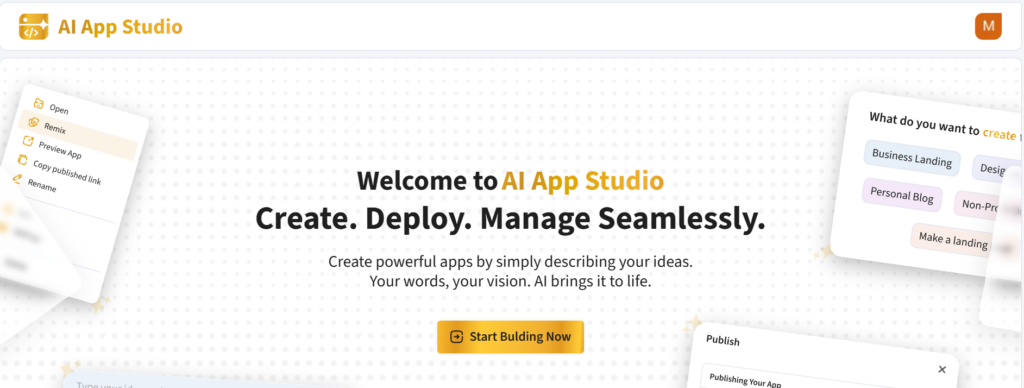
- Click the Start Building Now button to create a new project.
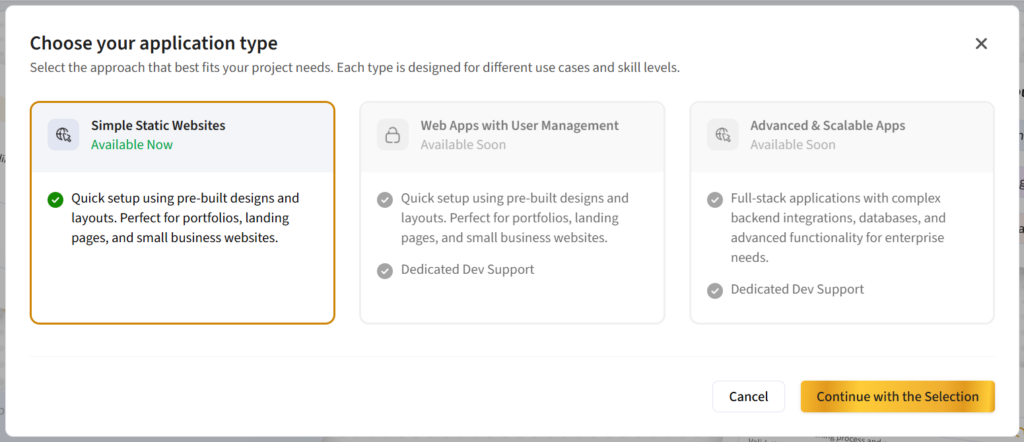
- Select the application and Continue with the selection button.
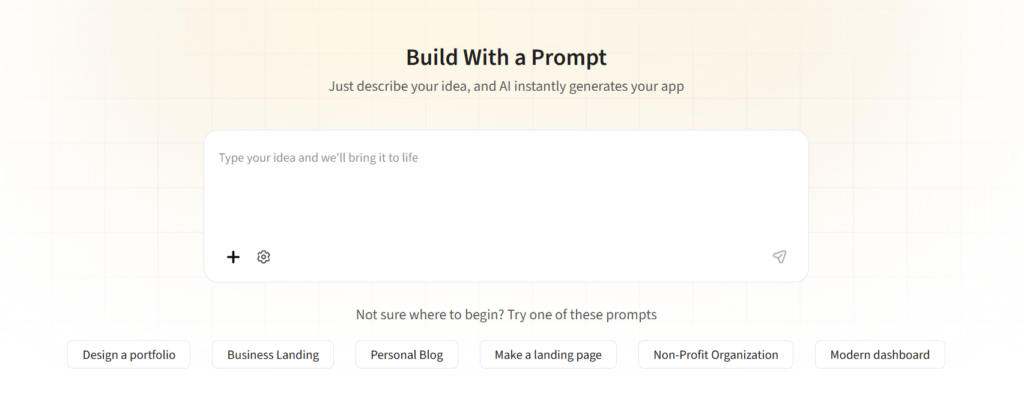
- You will be navigated to the AI App Studio build page.
- Type in your requirements in the chat box. You can also create projects using the templates provided. templates provided.
- The project built using the AI App Studio will be displayed in a few minutes in the AI App Studio Workspace.
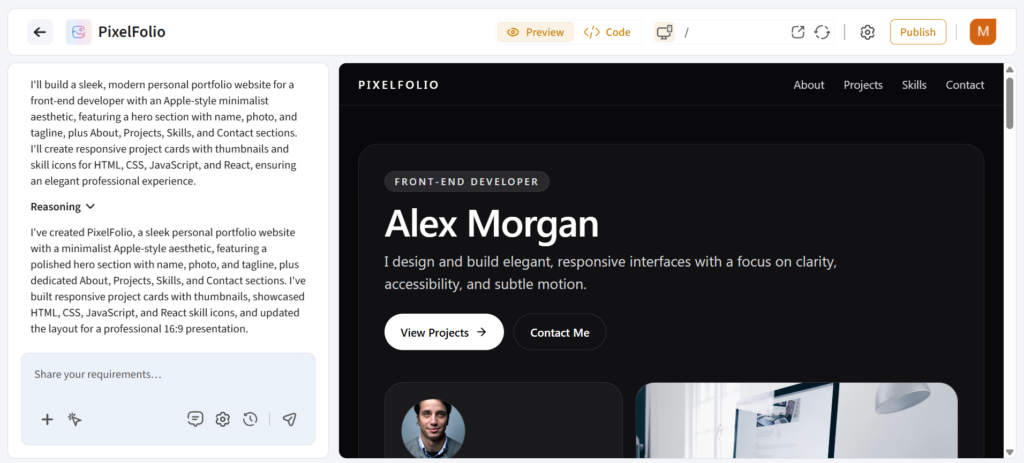
App Studio Dashboard Actions
- Click the Code option to view and edit the project code.
- Click the Preview option to have a preview of the project.
- Click the Toggle device mode option to toggle the project in the web or mobile view.
- Click Open preview in new tab option to open the project preview in a new tab.
- Click the Refresh option to refresh the project.
- Click the Publish button to publish the project to external users.
AI App Studio Settings
- Click on the Settings icon in the top right corner.
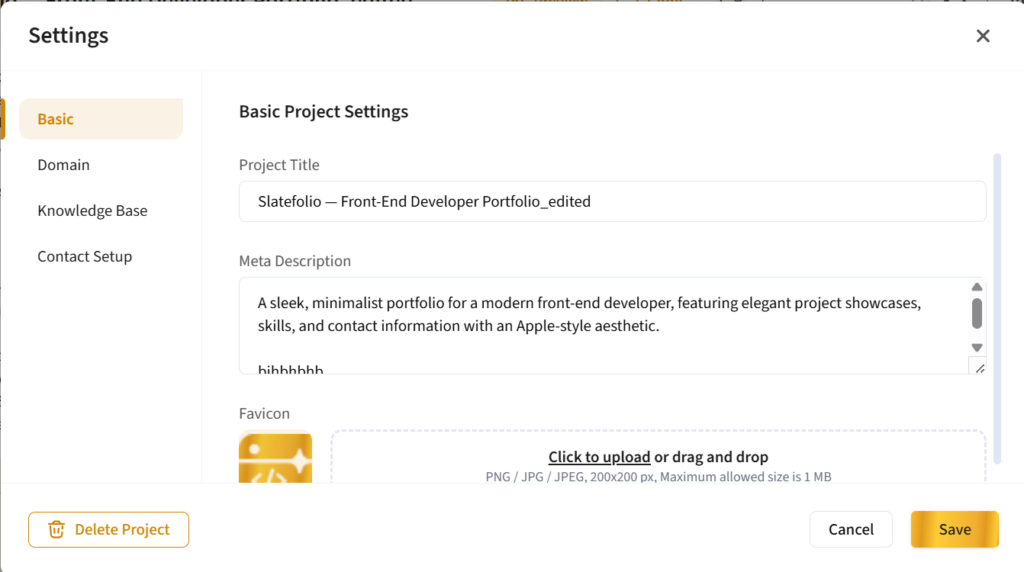
- In the Basic tab, provide the
- Project title
- Meta description
- Upload the images, if any
- In the Domain tab, click on the Publish Now button to publish the project. Now the project will be available publicly.
- You may set the project specific rules, coding style preferences, or external documentation style guides in the Knowledge Base tab.
- In the Contact Setup tab, you may choose the account email option to receive emails to your account. Choose the Use Custom Email option and provide the custom email to receive emails to the given email id. Tick the Auto Reply option and provide the text that has to be sent as auto reply message.
AI App Studio Workspace Actions
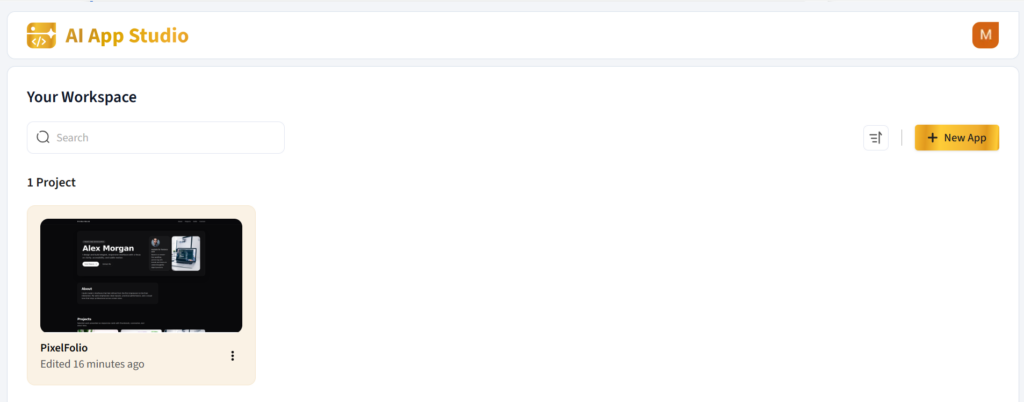
The AI App Studio Workspace displays all the projects you have created.
Click on the three dots icon and:
- Click Open to open the project.
- Click Rename option, to rename the project.
- Click Info to view the project details.
- Click Settings option to navigate to the Settings page.
- Click Remix option to build the project by remixing code to the existing project.