Infince Feeds helps you share your ideas and thoughts with your colleagues, engaging collaboration and boosting productivity. Feeds allow you to post messages and share photos and videos with a group or entire organization. You may like and comment on it.
Creating new posts
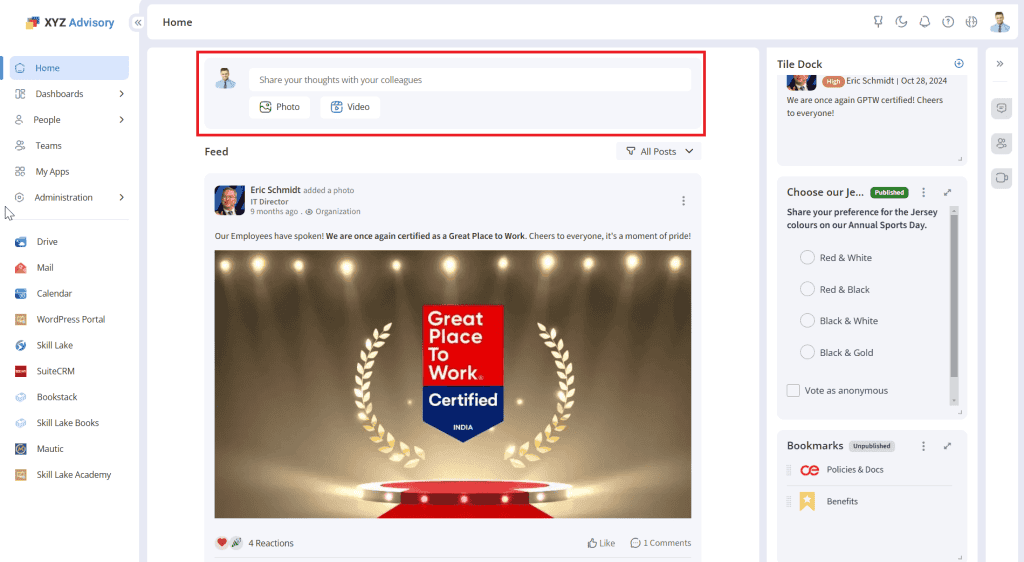
- Click on ‘Share your thoughts with your colleagues’ to add a new post, or click directly on the photo or video icon to add the same.
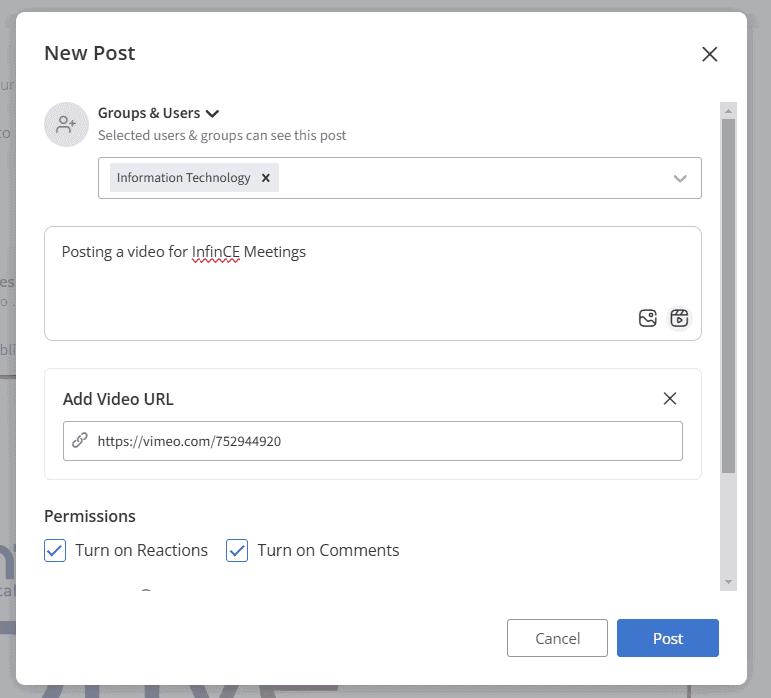
- Click on the ‘Who can view this post’ to select the target audience for this post.
- If you select Organization, the post can be viewed by all organization users.
- Select the ‘Groups & Users’ option and select the groups, with whom you want to share the post.
- Enter the message you want to share with your colleagues in the text box.
- You may mention particular users for the feed post. The users mentioned in the post and those who posted the feed will receive a notification email.
- Click the ‘Photo’ icon to upload the photo to the feed.
- To upload the video or add the video URL, click on the ‘Video’ icon.
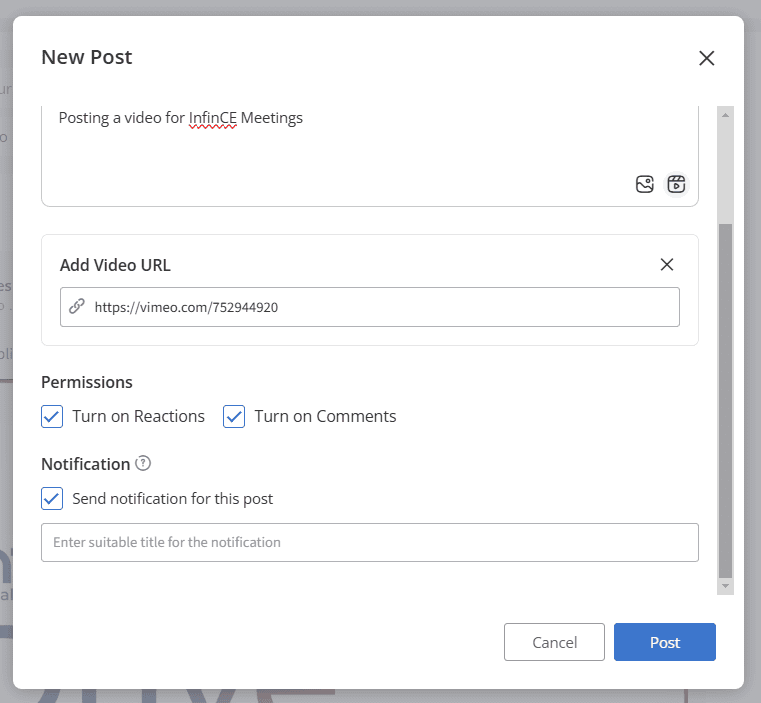
- In the Permissions section, you can set whether the Reactions and Comments are permitted for this post
- Check ‘Schedule this post’ option to set a date and time to publish the post.
- Check ‘Send notification for this post’ option if the target audience of this post needs to be notified. Enter a notification title in the text box. This title will appear as the email subject.
- Click on the Post button to share the post.
Viewing Feed Posts
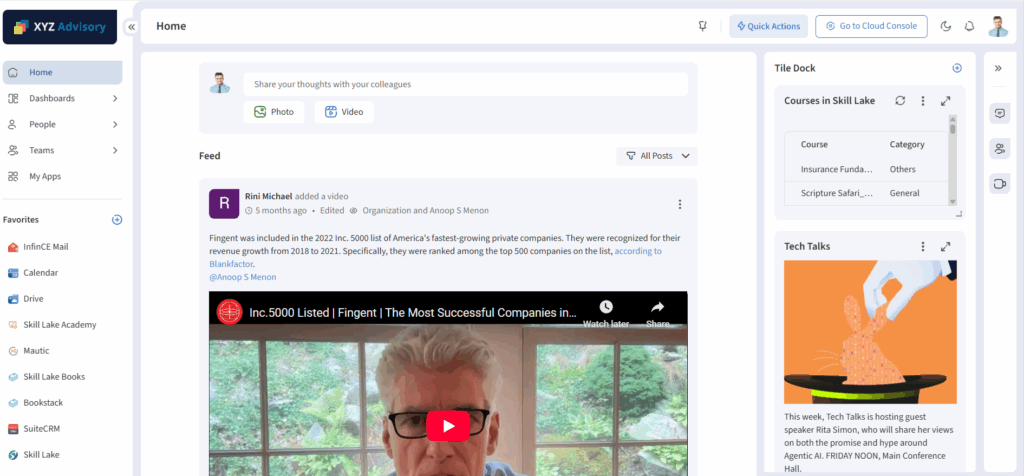
The feeds posted will be displayed in the Feeds section of the Home page.
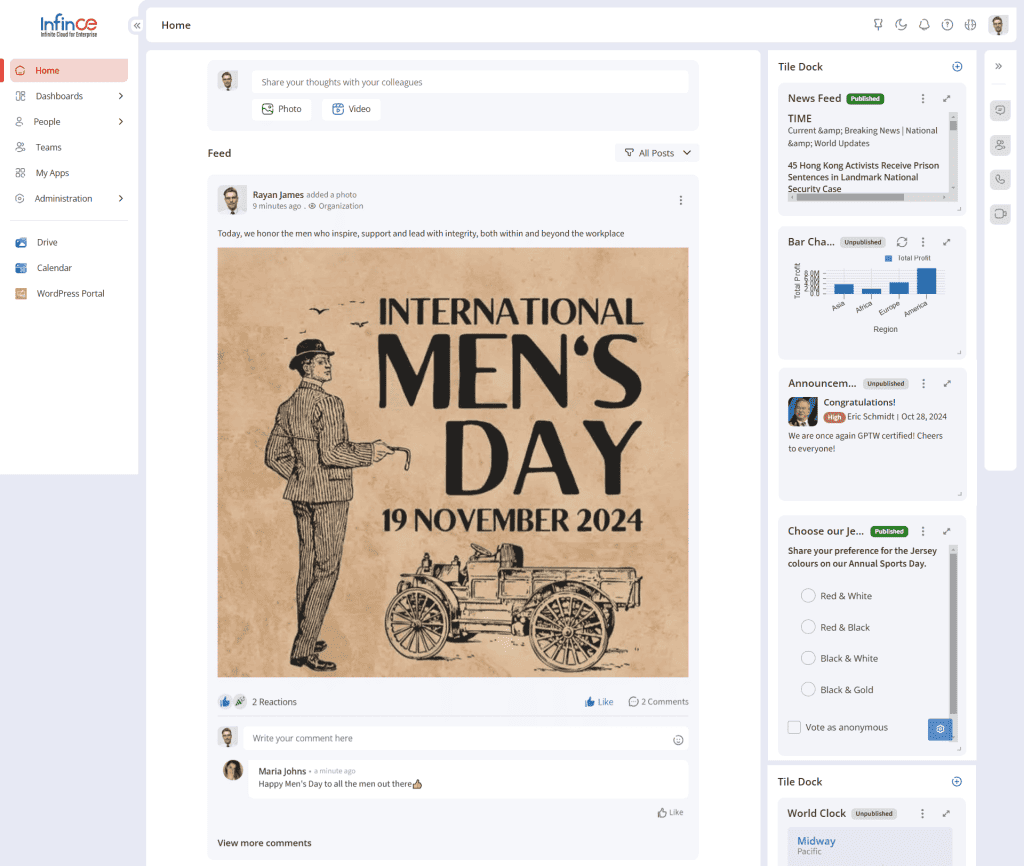
- You may also filter the posts using these options – All posts, My posts, or My favorite posts.
- By default, ‘All Posts’ will be selected.
- Select ‘My Posts’ to view only the posts you have created.
- To view the posts marked as favorite, select ‘My Favorite Posts’.
- To view the scheduled posts, select ‘My Scheduled Posts’

Feed Post Actions
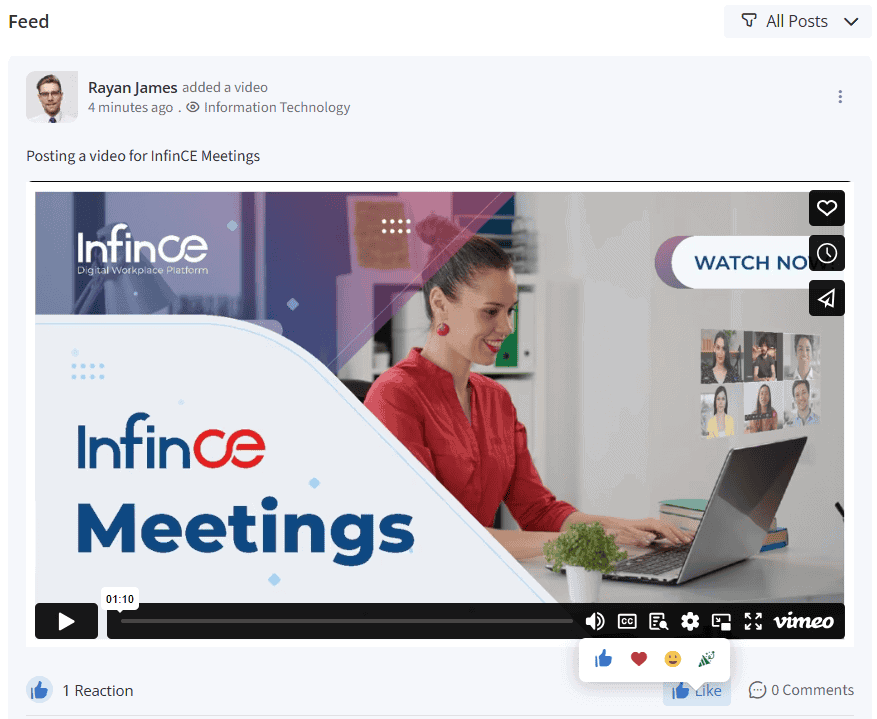
- If you like the post, you may Like it or add comments to it.
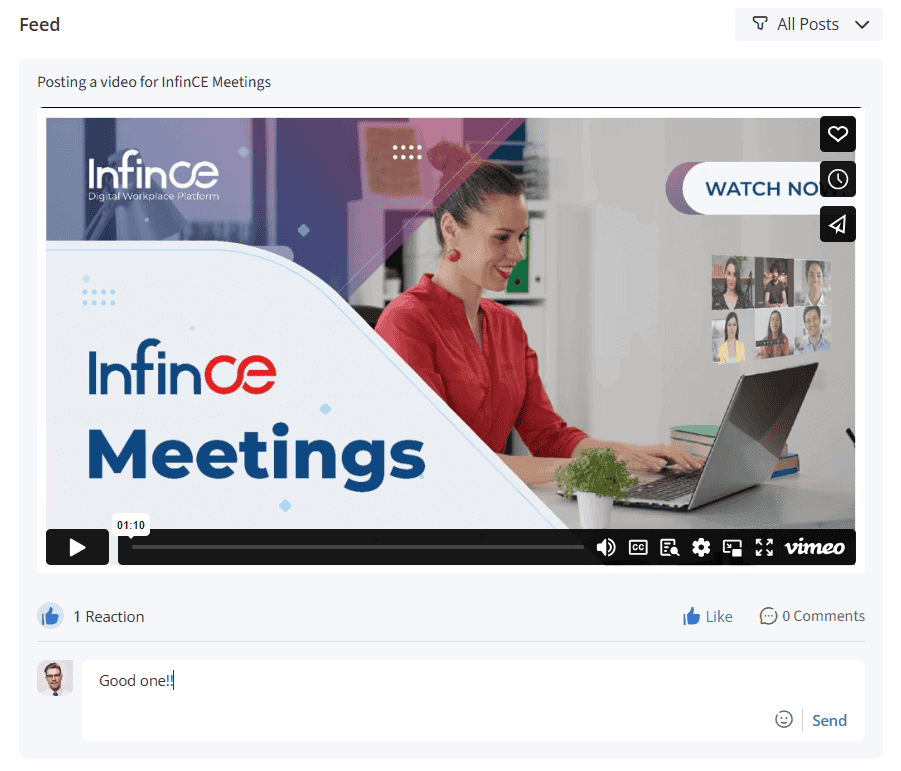
- To add comments for the post, enter your comments in the Comments section.
- To mark this post as a favorite, click the ‘Mark as favorite’ option.
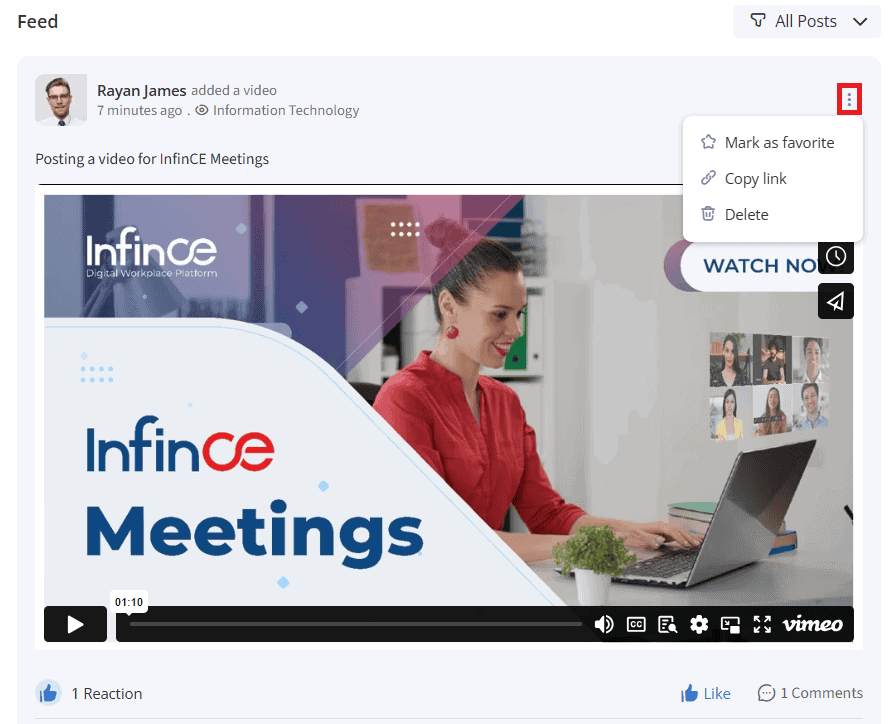
- Click on the ‘Copy link’ option to copy the feed post link to the clipboard.
- The user who created the post can delete their post from the Feeds page by clicking the ‘Delete’ option. The deleted posts will no longer be listed in the Feeds section. The ‘Delete’ option will be displayed only for your feed posts.
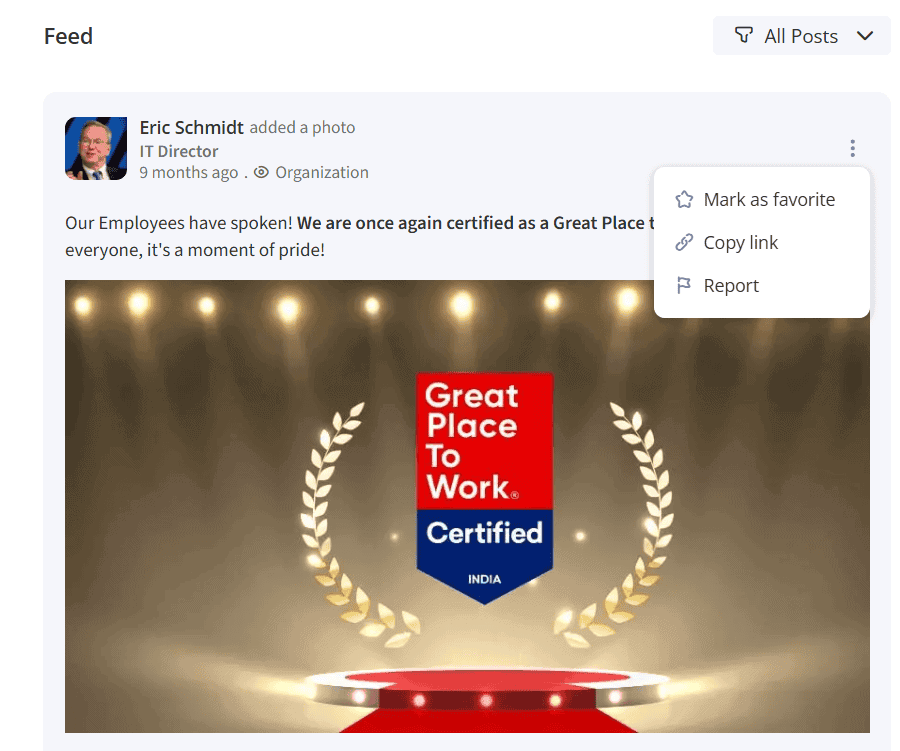
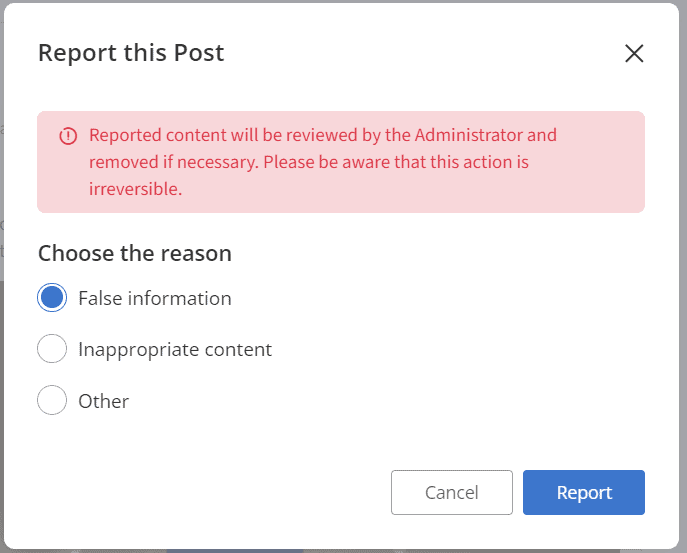
- If the post has irrelevant content, you may report the post by clicking on the ‘Report’ option. On clicking, a pop-up will appear, where you may choose the reason and click on the Report button. The ‘Report’ option will be displayed for feeds posted by other users.
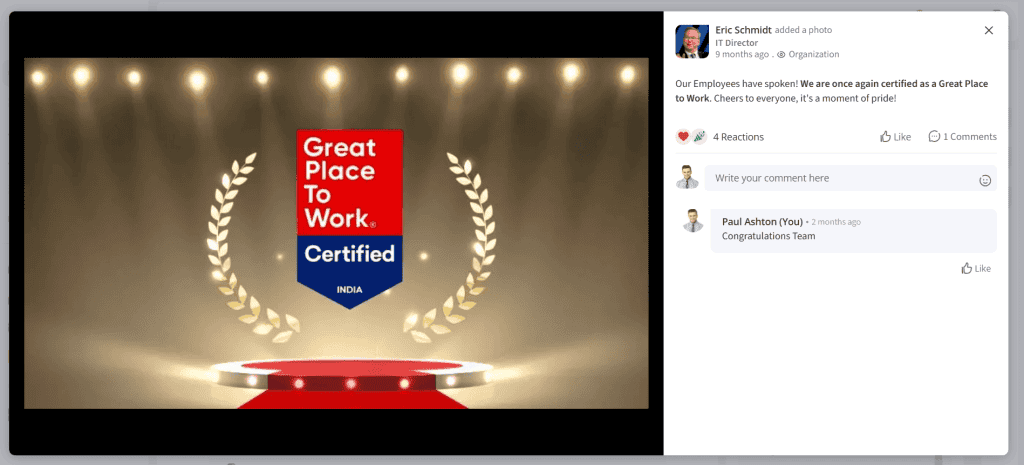
The feed post with their interaction view is shown below.
Managing Feeds
Users with feed administrative privileges can view, block or delete the feed post. Deletion can be done only for the unpublished posts.
Go to Administration > Feed, Dashboards & Tiles section to view all the feed posts. You can view the feed ID, post name, owner, status, report, and created date.
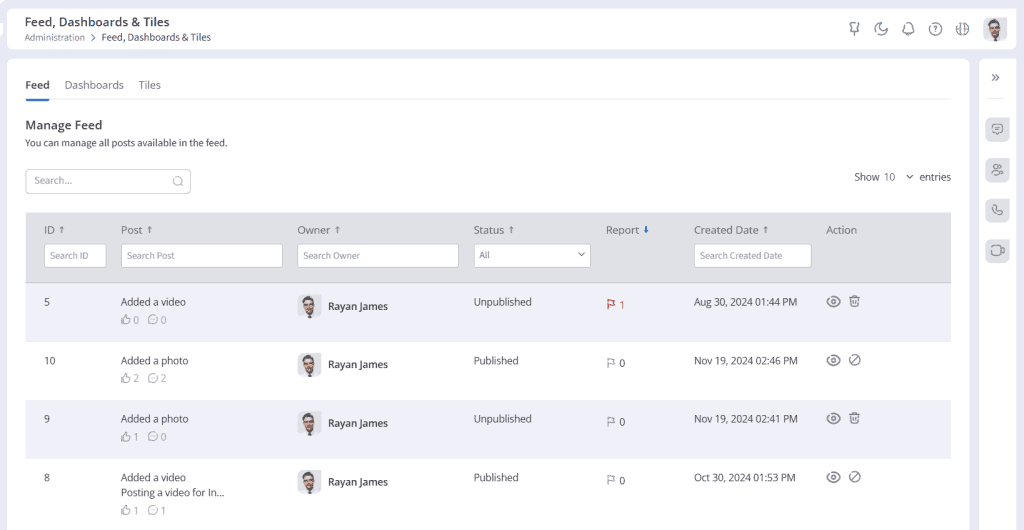
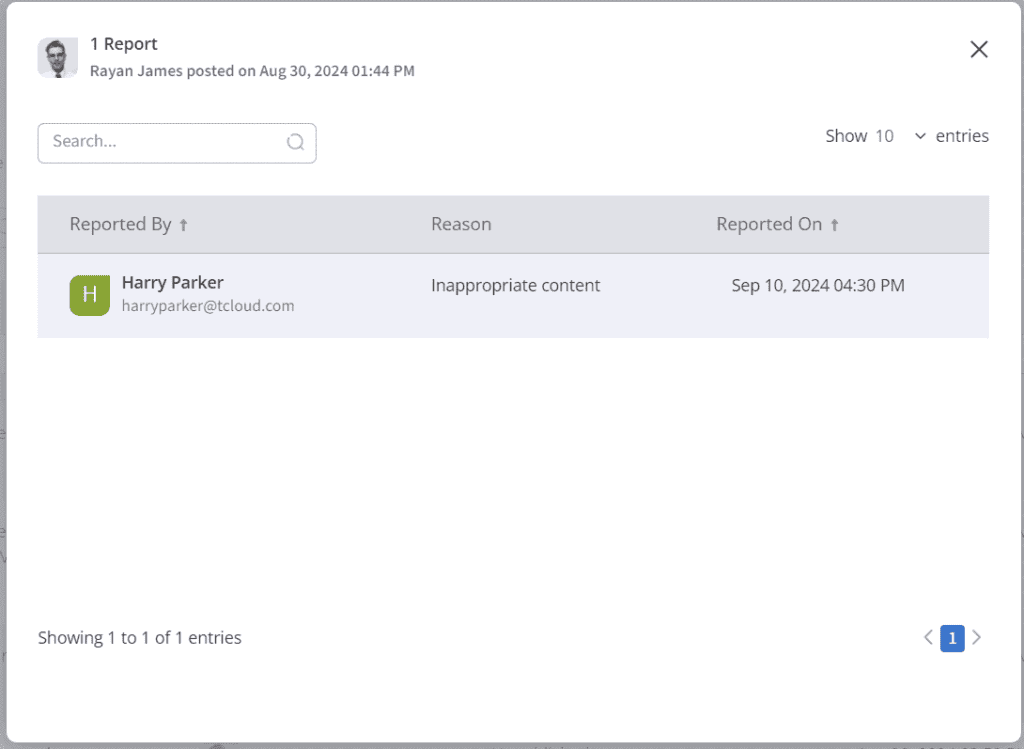
You can view the number of users who reported the feed post. Click on the count to view the reported user name, reason, and reported date.
- In the Actions column, click on the View icon to view the feed post and its comments.
- If you find that any published post to is irrelevant, you may click on the Unpublish icon to unpublish the post. A confirmation message appears, where you may click Yes to unpublish the post.
- To delete the feed post, click on the Delete icon. A confirmation message appears, where you may confirm the deletion.
Tile Dock
The Tile Dock section on the right helps you share pertinent information using tiles. The Administrators with organization Dashboard edit permissions may add and edit the tile dock tiles.
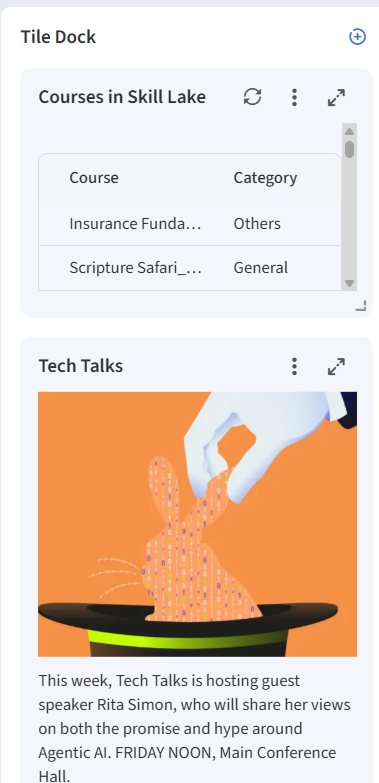
Click on the Add button to add a new dashboard tile.
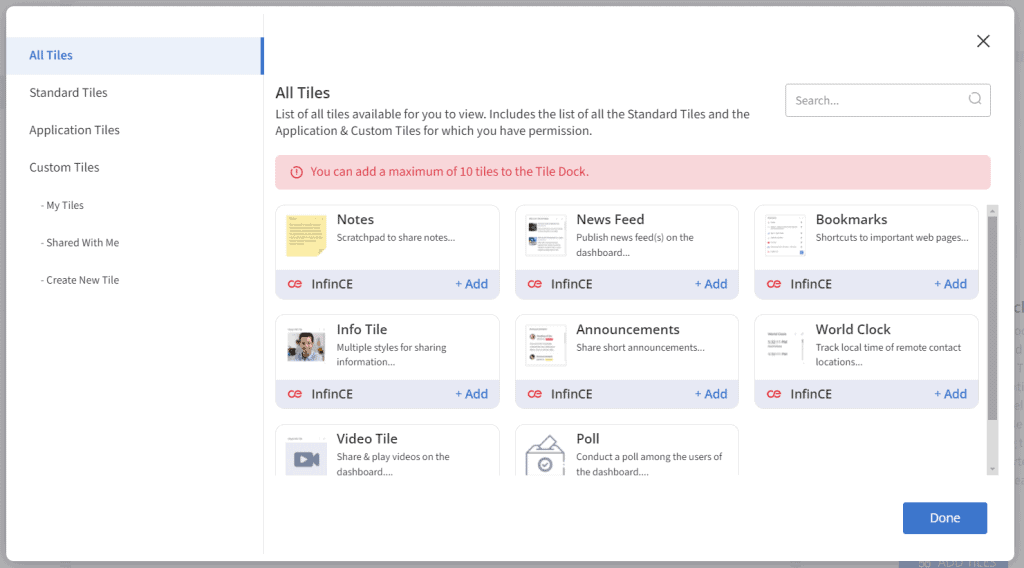
You may add and edit the tile data.
Only the tiles published by the Admins will be visible to other users. You may publish the tile by clicking on the three dots and the publish option.
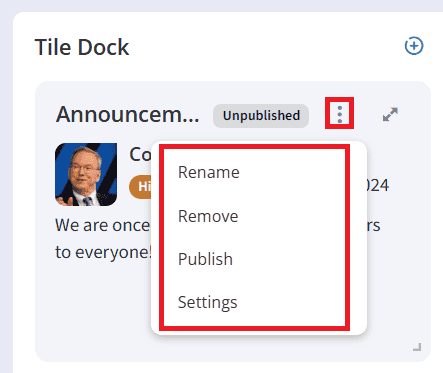
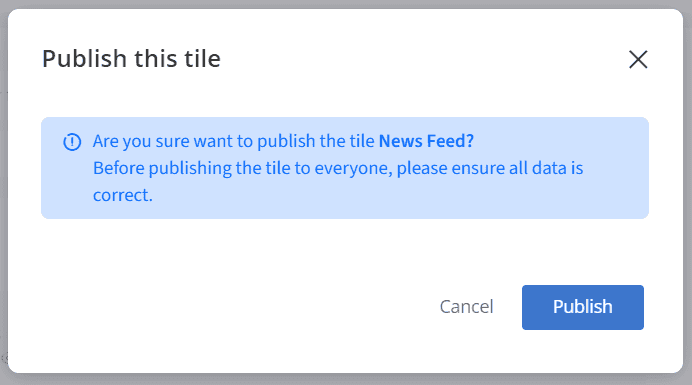
A confirmation message appears, and you may click on the Publish button.
Now, the published tile can be viewed by users with view permissions.