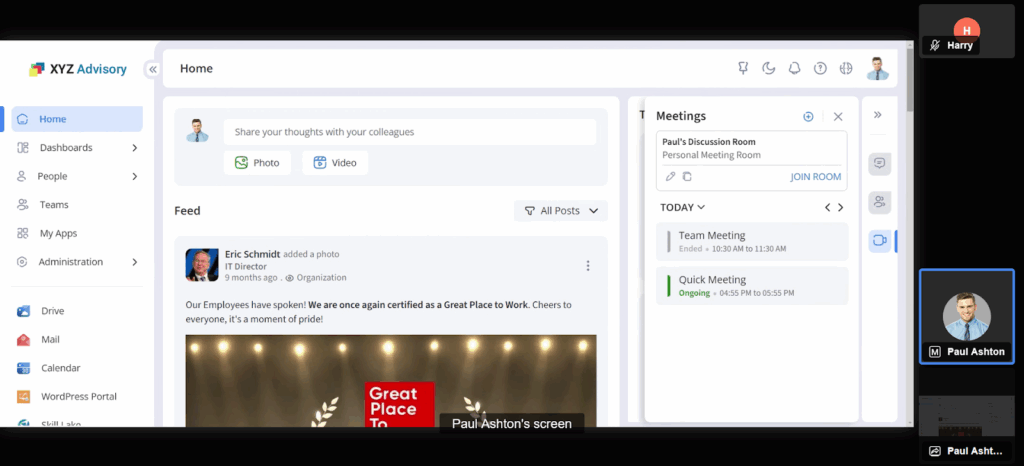
Online meetings provide a convenient way for people to connect anytime and anywhere. They offer an interactive way for meeting attendees to engage with each other. In addition, they reduce travel costs and disruptions because people can connect from anywhere. Infince Workplace provides the ability to host online meetings with participants from within your company as well as customers and business contacts who are not part of your organization.
Meeting Schedule
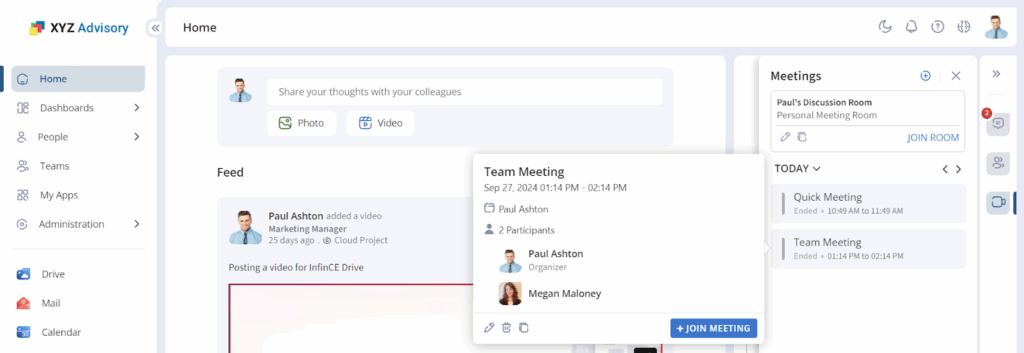
Click on the Meetings icon to open the Meetings panel. All the meetings scheduled will be displayed. You can see the meetings scheduled for today. To navigate to subsequent days, click on the right arrow. Click on the down arrow to pick a date from the calendar.
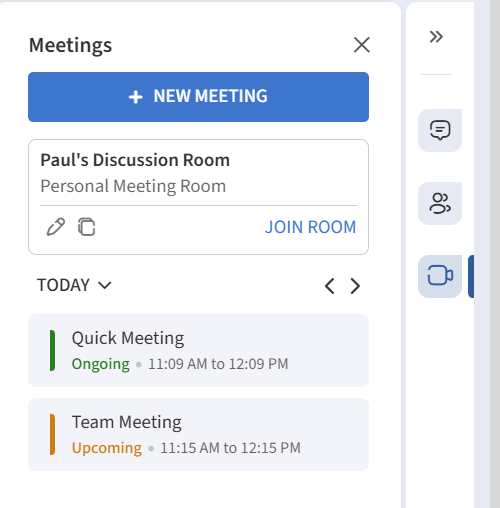
Quick Meeting
Quick meetings are the meetings without any advanced scheduling.
Below are the steps for inviting people for a quick meeting:
- Click on the ‘Meeting’ icon on the right side of the Dashboard.
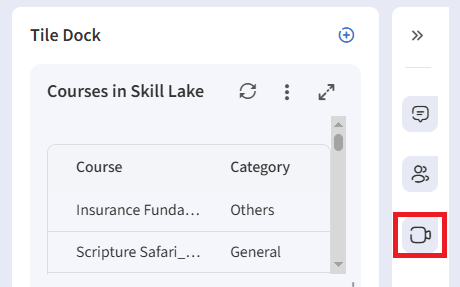
- Click on the + New Meeting button to schedule a meeting or have a quick meeting with your users.
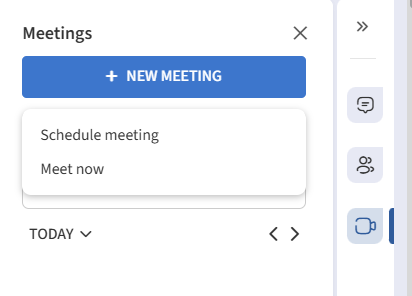
- To have a quick meeting, click on the ‘Meet Now’ option to navigate to the meeting screen.
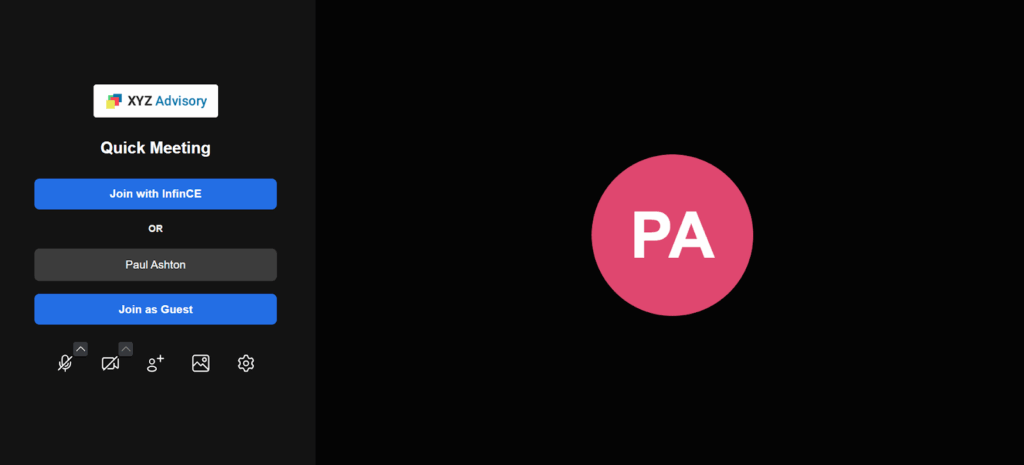
- Click on “Join with Infince” to join using your Infince credentials, or you may enter your display name and join as a guest.
- Participants will get a notification email with the meeting details.
Scheduling a Meeting
Infince Calendar is a workplace tool for efficiently scheduling meetings and events. When you click the Schedule Meeting option a popup will appear where you can fill in all the relevant details of the event. Click the More Options to expand the event creation window as a full page in the calendar app.
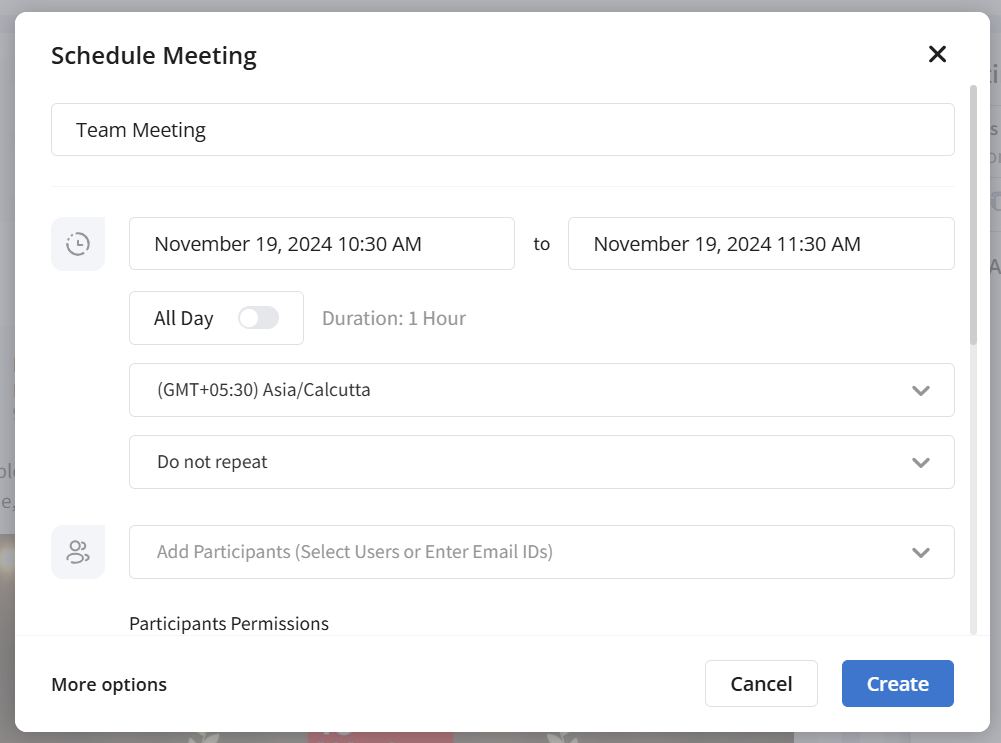
Refer to the Infince Calendar for more details.
Personal Meeting Room
Personal Meeting Room is a virtual meeting room you can access with your personal meeting URL. It is the Infince meeting with the URL unique to you that never changes and is always open. You can instantly start a meeting with it, which is perfect for the people you meet regularly.
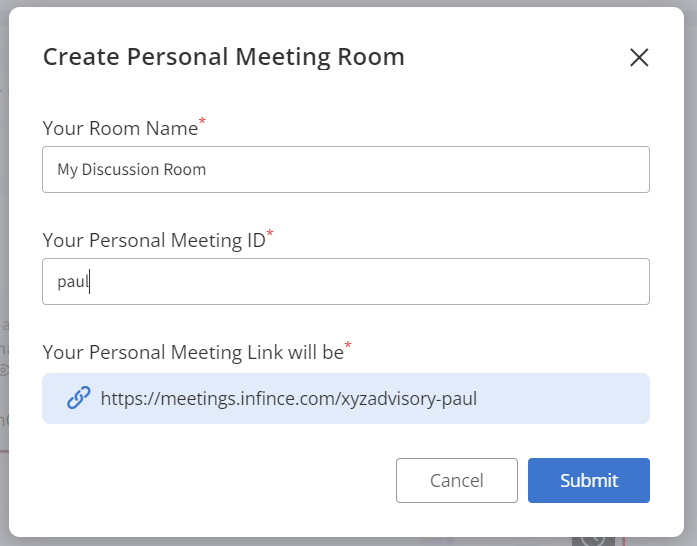
You can provide a name for your personal meeting room. Your personal meeting room will be generated based on the meeting ID you have provided. You can also edit the meeting ID, based on which the personal meeting room URL changes. You can only create a single personal meeting room, and your meeting invitees can join it only if you admit them. You can copy & share the personal meeting room URL with the participant(s). The steps to create a personal meeting room are given below:
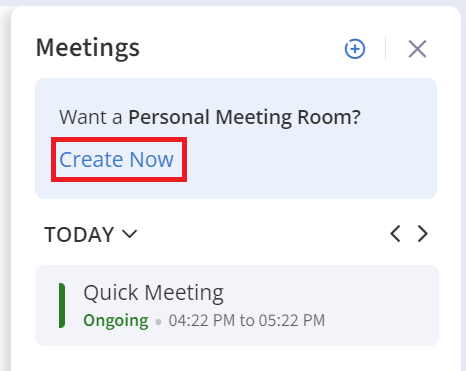
- Click on the Meetings panel and Create Now link to create a new meeting room.
- Enter your meeting room name, personal meeting ID and click on the Submit button. The meeting room URL is created based on your meeting ID. A confirmation message appears on creating the personal meeting room.
- Click on the Join Room link to join the meeting room created.
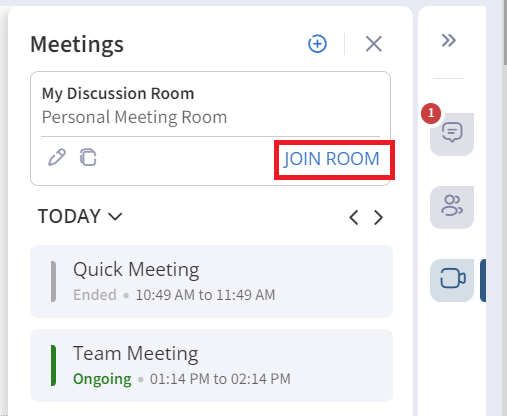
- Click on the Copy icon to copy the meeting room URL to the clipboard.
- The organizer can share the personal meeting room URL via chat. The organizer needs to click on the Admit icon to admit the invitee to the meeting room.
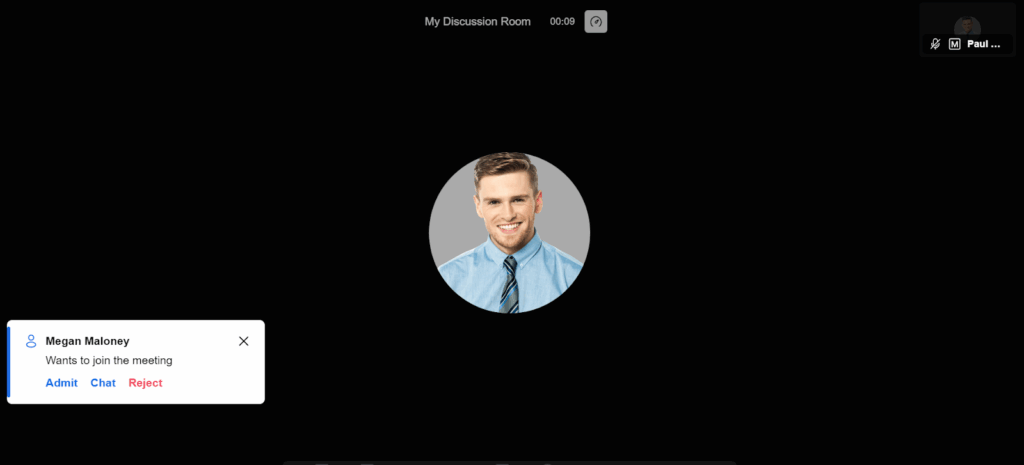
- The meeting room provides all the features of Infince meetings, like inviting participants, audio/video sharing, chats and polls, screen sharing, emoticons, adding to a breakout room, meeting recording, etc.
Editing meeting room
- Click on the Edit icon in the Meetings panel to edit the personal meeting room details.
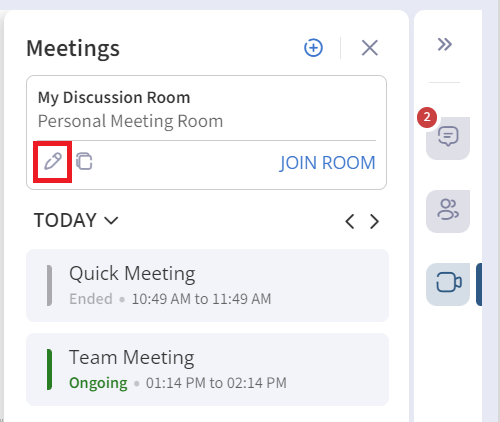
- In the ‘Edit Personal Meeting Room’ pop-up, you can edit the meeting room name, personal meeting ID and click on the Submit button.
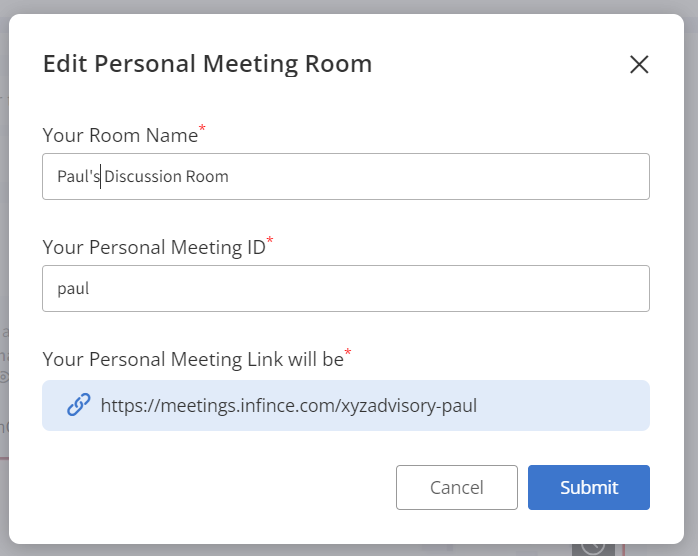
- While editing the personal meeting room, you can change the meeting room name and meeting ID. You should provide the meeting ID which has not been taken earlier.
Joining a Meeting
External participants can easily join the meeting at the scheduled time by just clicking on the link. They do not need an Infince login, and they need not download any other software.
Internal/Infince participants can join by
- clicking on the link within the email, or
- clicking on “Join Meeting” from the meeting details panel
- clicking on the meeting link within the Mobile App.
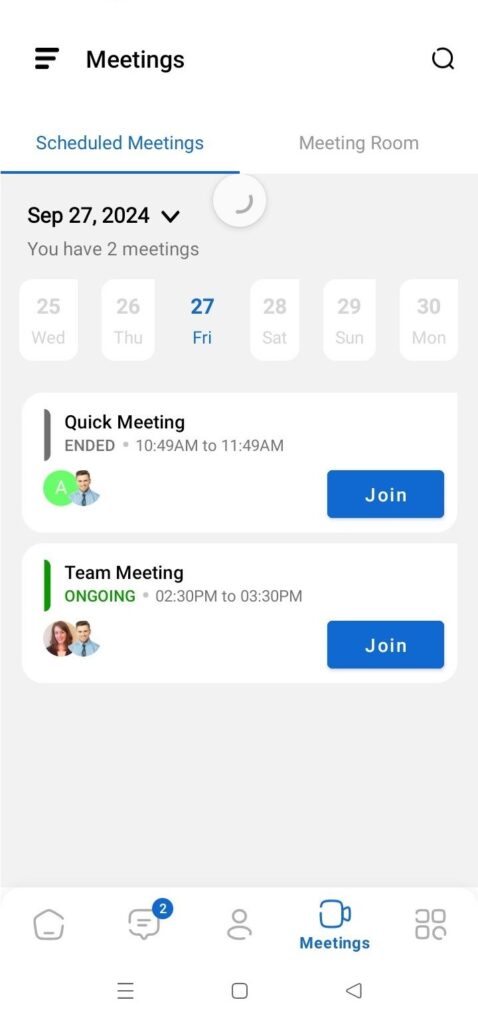
Tap on the Join button to join the meeting. Tap on the meeting name to view the meeting details.
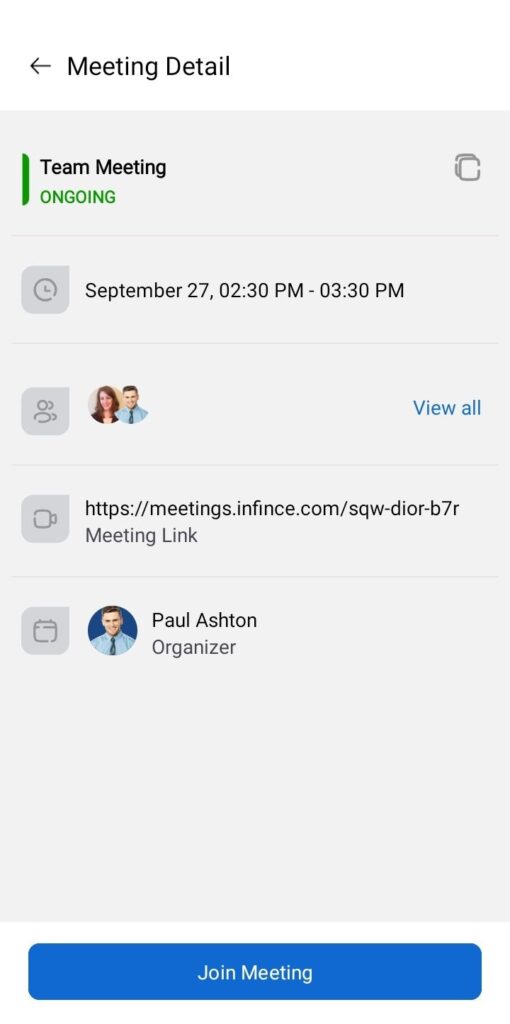
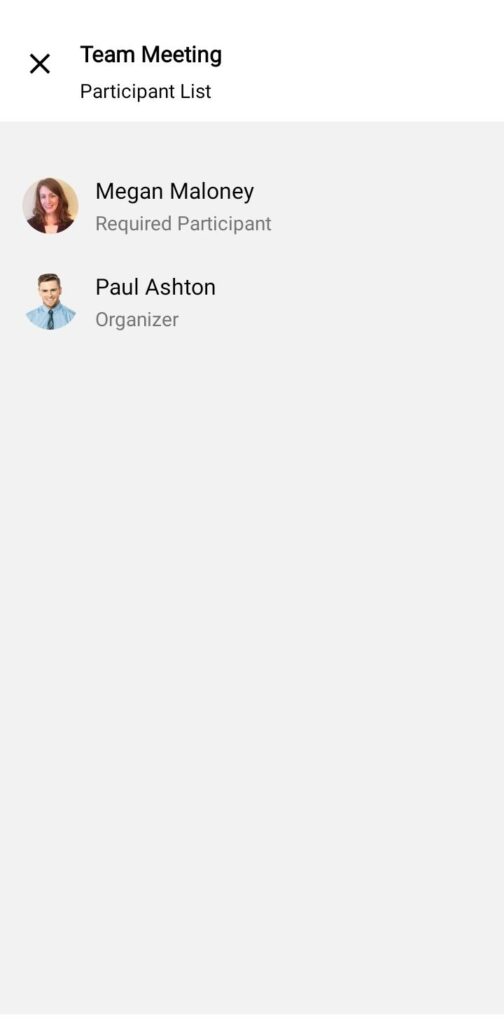
Tap on the View all icon to view all the participants.
Corporate Branded (White-labeled) Meeting Interface
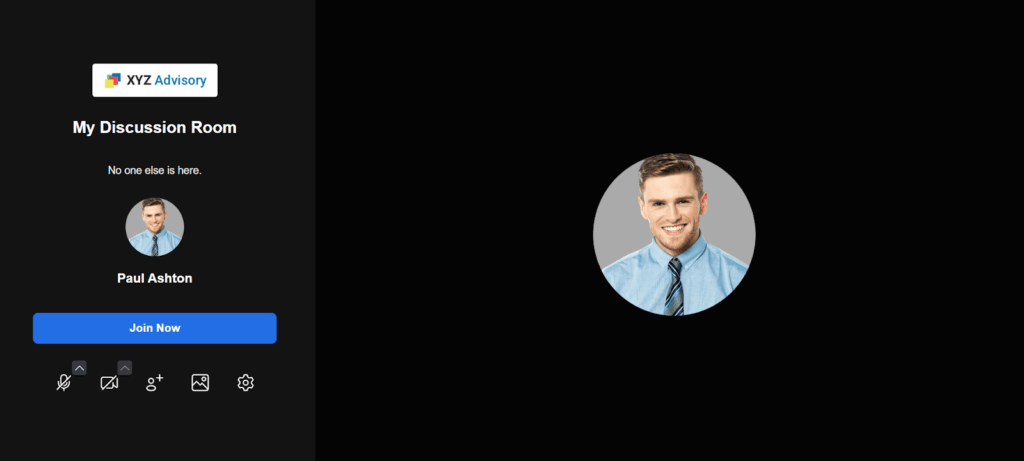
The login screen of the meeting is branded with your Company’s logo (set in Administration > Settings), making it a conducive forum to host your business discussions.
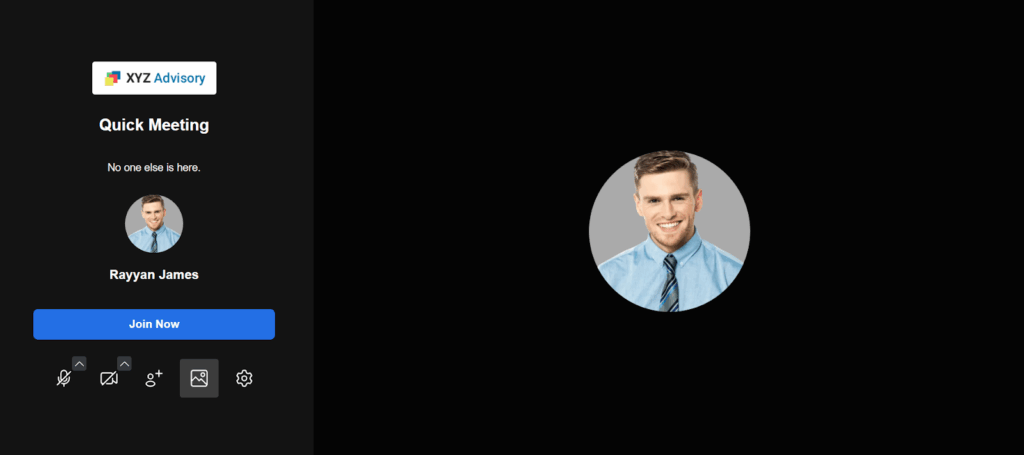
On the login screen, you can decide your mic and speaker settings. For logging as guests (without logging Infince), enter your name before joining. You can also copy the meeting link for ease of quickly sharing with other participants.
Infince Meeting provides you with all the standard features like Video Meeting, Screenshare, Meeting Recording, Group and individual chats, Mic/Speaker controls, Polls, Breakout rooms, viewing meeting info & participant info as well as other interesting interactions/controls. Please check the article on Meeting Features to know more.