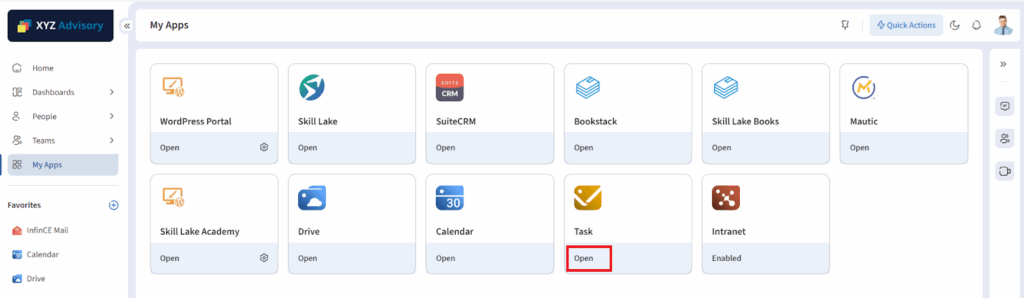
The Tasks App helps you manage and organize your work. To open the Tasks App, go to My Apps and click Open.
Task
Creating a Task
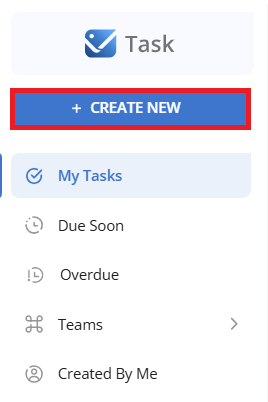
- Click Create New button on the left panel.
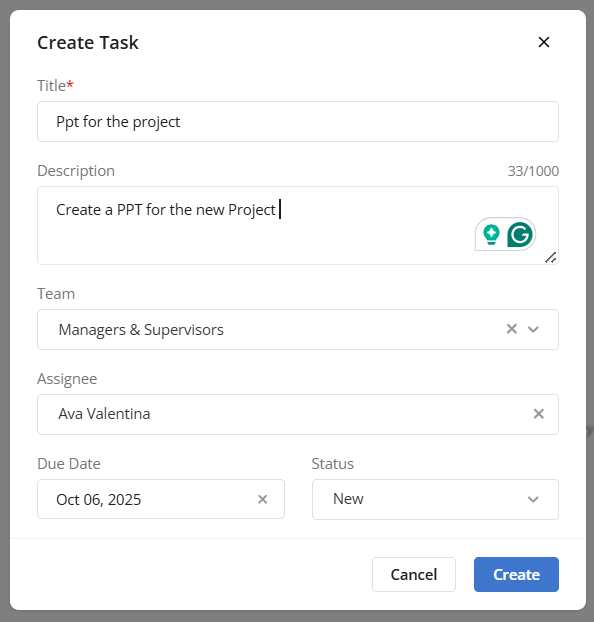
- In the Create Task pop-up:
- Enter the Title and Description
- Select the Team and Assignee
- Select the Due date and Status
- Click the Create button
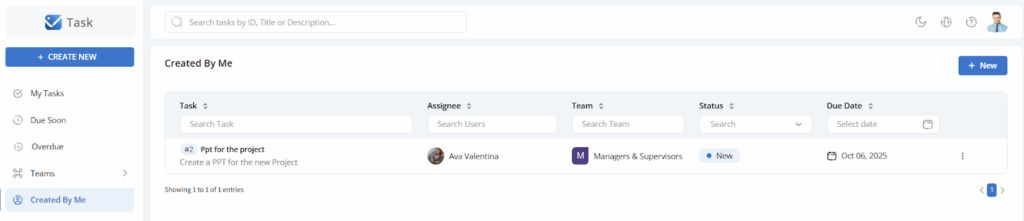
Tasks you create are listed under the Created by Me menu.
Task list
Other Actions
- Click the New button to create a new task.
- Click the View icon to view the task details.
- Click the Duplicate icon to copy a task.
- Click the Edit icon to update a task.
- Click the Delete icon to remove the task.
- Click the Activity icon to view the task’s activity history.
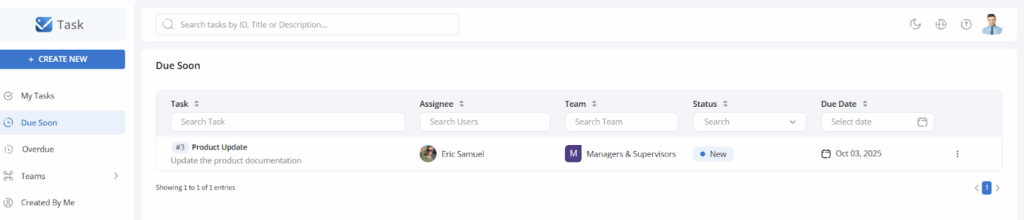
Due Soon
This menu lists all tasks that are due soon.
Overdue
This menu lists all the tasks that are past due
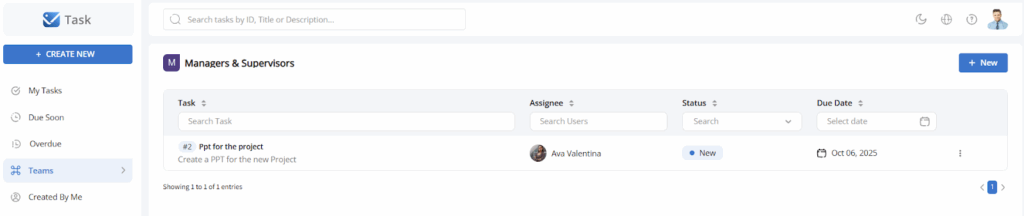
Teams
Click on the right arrow to list all the teams. You can add a new task for the team or view the existing tasks.
The Tasks App makes it easy to create, organize, and track your work.